The working time model
A working time model supports the smooth workflow of a work process. It regulates the distribution of an employee’s working hours.
In Xpert-Timer you can create any number of working time models. You can find an overview of the models in the configuration of time tracking under the “Working Time Models” tab.

A working time model consists of the individual daily models and regulates flexitime, framework time, and core working hours within the company.
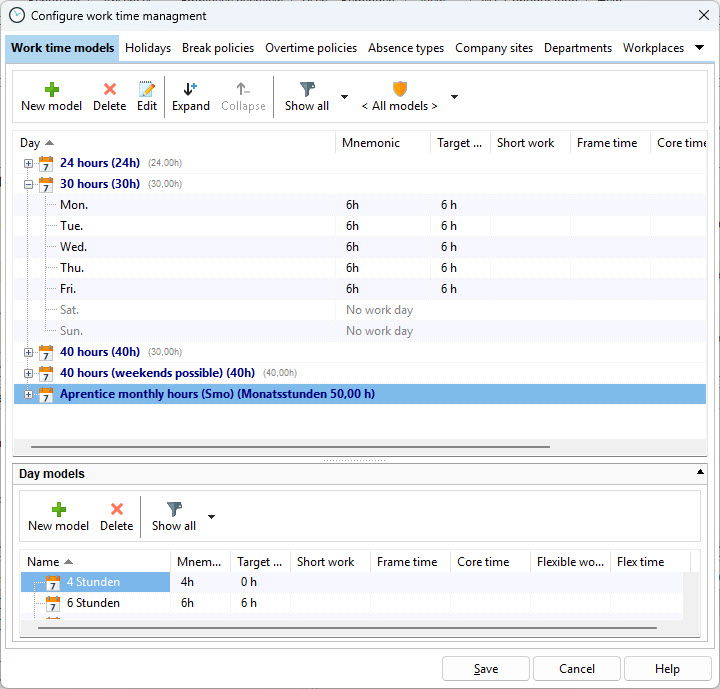
Use the menu item “New Model” to create a working time model.

Abbreviation |
The abbreviation is used in some reports to save space. |
Vacation value/day |
The averaged value of a vacation day in hours. Usually 8h. |
Framework time:
Framework working time defines the period during which the employee may be present.
Core working hours:
Core working hours define the period during which the employee must be present.
Flexitime:
Time span between framework working time and core working hours during which the employee can freely choose the start and end of work.
Break mode
The standard in many companies is a flexible break of 60 minutes in combination with the statutory break regulation.
The differences between the break modes:
Flexible break: Here you can specify, for example, 60 minutes that an employee must observe per day (defined in the daily model). Through the individual clock-in/clock-out entries, the employee effectively accumulates these 60 minutes over the course of the day and is notified if more than 60 minutes of break time has been taken. If you specify 0 minutes, the break duration is not checked and no warning is displayed if the break time is exceeded.
Off: If you do not require an exact display of break times in the time stamps, you can use only the statutory break regulation. In this case, the employee must manage breaks themselves via clock-in and clock-out; otherwise, the statutory breaks will be deducted in total at the end of the day.
Assign a meaningful name, such as “24 hours part-time”. The working time model consists of the different daily models. If you do not have a suitable daily model to choose from, you can create a new daily model using the “Plus” icon.
Flexitime allowed |
If you would like to receive notifications that time stamps were recorded outside of flexitime, check this box. |
Use framework time |
If you would like to receive notifications that time stamps were recorded outside of the framework time, check this box. |
Use core working hours |
If you would like to receive notifications that time stamps were recorded outside of core working hours, check this box. |
Consider short-time work |
Check this box if you want to use the short-time working hours according to the daily model. |
Monthly hours
If you manage working time based on monthly hours, you must set the type of weekly model to “Monthly hours”. Specify the number of hours that make up a vacation day and select the working days that are relevant for vacation requests and vacation calculation. By default, an employee on a monthly-hours basis can work on any day, including weekends. Therefore, weekends are also counted as vacation days unless they are excluded in this dialog.
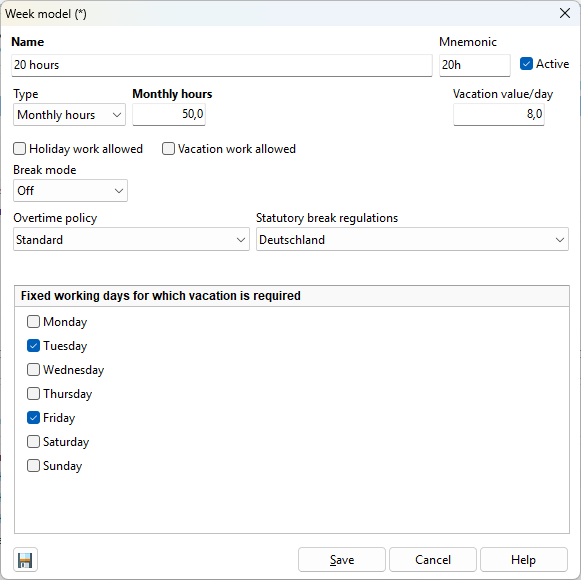
Therefore, specify here the days for which a vacation day should be counted.